Docker-Compose
#Day18 #90daysofdevops challenge

Hi there! My name is Yashswini and I'm a Linux Engineer with 3 years of experience in automation, continuous integration, and deployment. My expertise lies in DevOps and Cloud Computing with a focus on AWS. I have hands-on experience in various tools and technologies related to infrastructure automation, managed services, containerization, and monitoring and logging. I have a passion for troubleshooting and resolving issues and I'm always eager to learn and explore new technologies
Back to the other blog of the docker journey in the last blog, you came to know about how we create Dockerfile and by that, we build images and run the container now to move one step advance we will discuss Docker-Compose
1. Definition :
Docker Compose is a tool for running multi-container applications on Docker defined using the Compose file format. A Compose file is used to define how one or more containers that make up your application are configured.
docker-compose up
Docker Compose files are very easy to write in a scripting language called YAML, which is Yet Another Markup Language. Another great thing about Docker Compose is that users can activate all the services (containers) using a single command.
3. What is YAML in Docker Compose
YAML is a human-readable data serialization format commonly used for configuration files. In the context of Docker Compose, YAML is the file format used to define the structure and configuration of your application's services, networks, and volumes.
4. Create a Docker-Compose File
First, install Docker-Compose
apt-get install docker-compose -y
create a compose file "docker-compose.yml

Now after writing the docker-compose file run the command
docker-compose updocker-compose downdocker-compose up -d


5. Pull a pre-existing Docker image from a public repository (e.g. Docker Hub) and run it on your local machine. Run the container as a non-root user (Hint- Use
usermodcommand to give the user permission to docker). Make sure you reboot the instance after permitting the user.Run the container as a non-root user and give the user permission to docker, in this case, use the command
sudo usermod -aG docker $USER(add a docker to a user group)Pull an Nginx image from the docker hub and run the container [do port mapping of Nginx(80) to the host machine ].
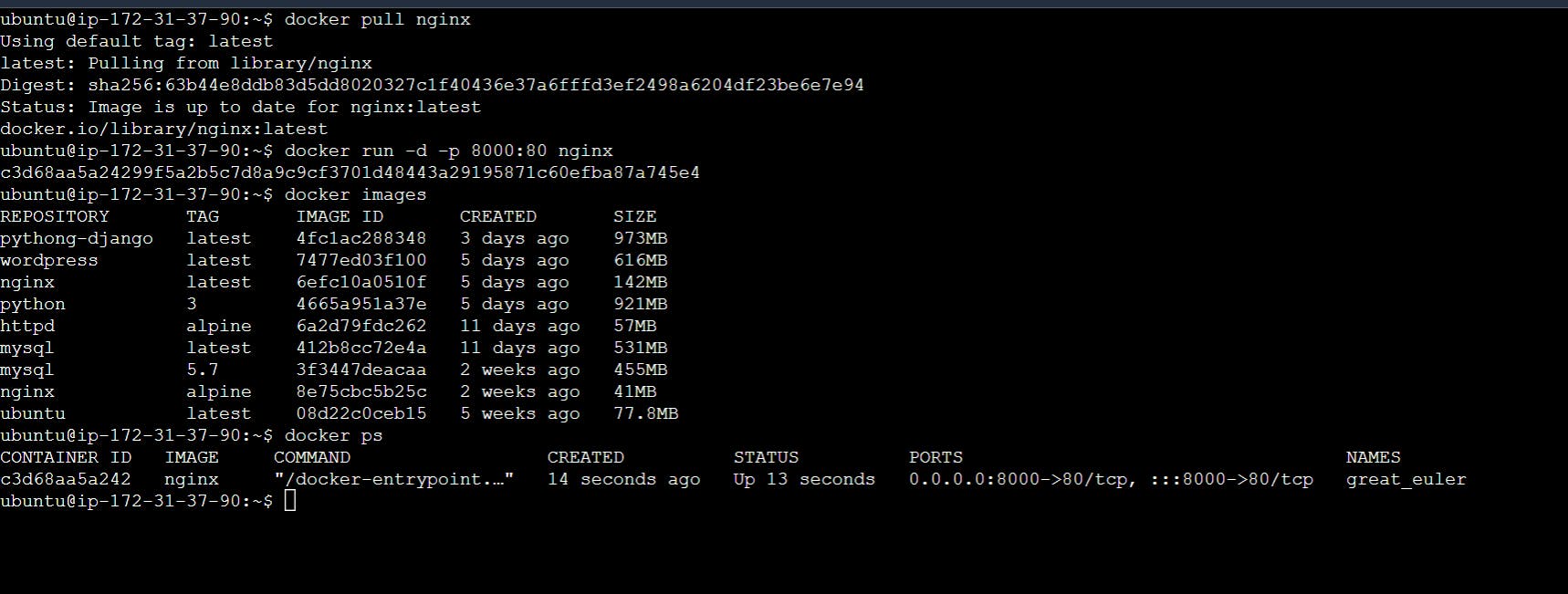
Inspect the container's running processes and exposed ports using the docker inspect command.
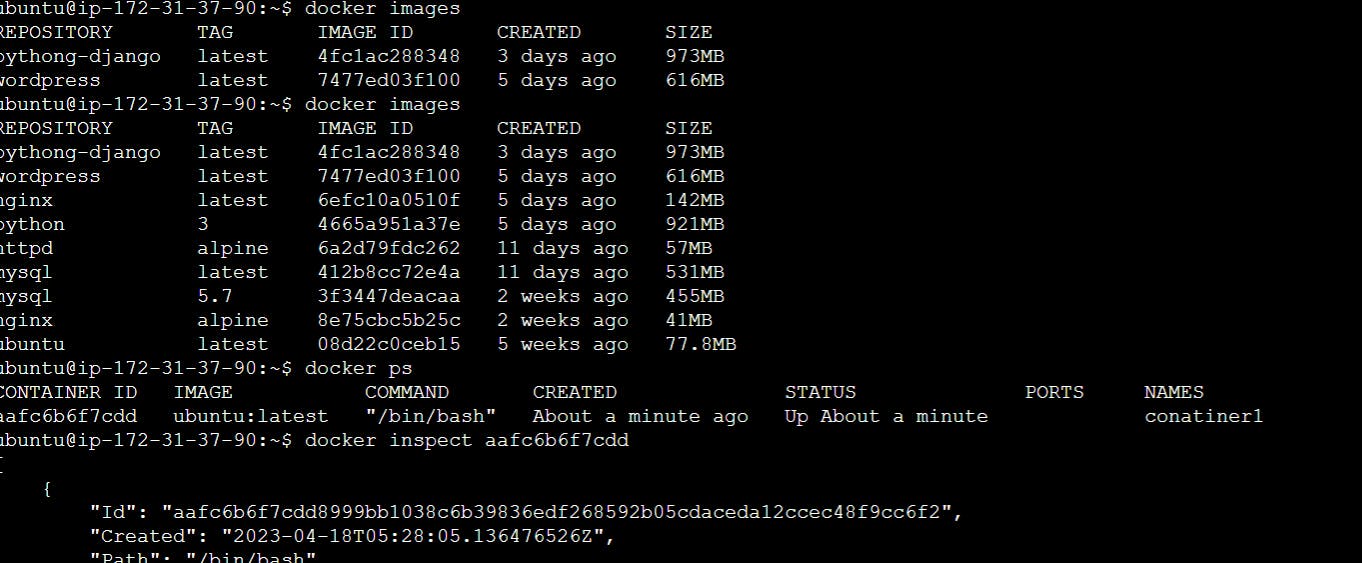
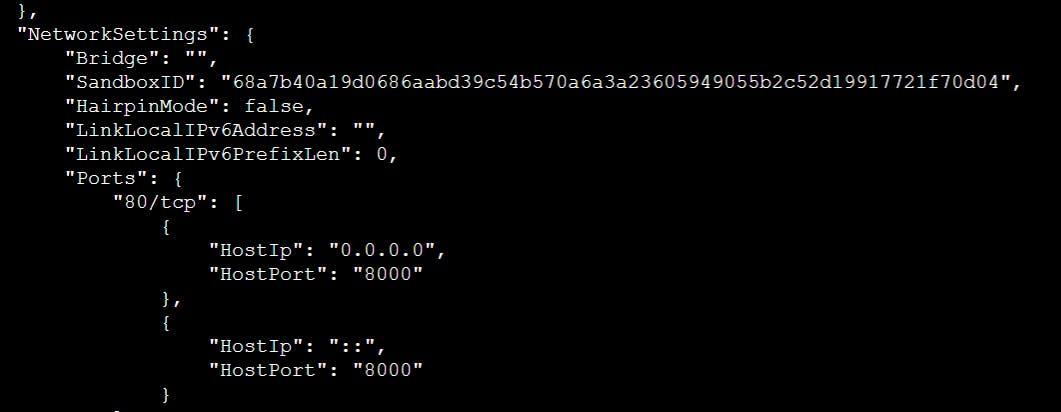
- Use the docker logs command to view the container's log output.

Use the docker stop and docker start commands to stop and start the container.

Use the docker rm command to remove the container when you're done.

Thanks for reading ...


![Jenkins Freestyle Project for DevOps Engineers[Day-23 Task]](/_next/image?url=https%3A%2F%2Fcdn.hashnode.com%2Fres%2Fhashnode%2Fimage%2Fupload%2Fv1690291895202%2Fc7012bdd-d2f6-44e4-8d64-6d071c0c7c39.png&w=3840&q=75)
